Check your account and project.
Use the Your business selector in the web sidebar when it is available to your role. Confirm the business name and connected number; contacts, campaigns and permissions belong to the selected project.
Getting started with Wydely
Learn where everything lives, prepare your account and build one useful customer journey. Follow the real product screens below, then run a small test with your team.
An account-to-first-workflow guide. Screens show the actual web interface with sample data.
Account & project readiness
Complete your registration, choose the intended business or project and review its status before preparing messages.
Use the Your business selector in the web sidebar when it is available to your role. Confirm the business name and connected number; contacts, campaigns and permissions belong to the selected project.
Open Home → WhatsApp setup. Review the connection state and use the next available action. A connection still in progress or a locked step needs to be resolved before that action can continue.
In Settings → Team & access, choose who can reply and manage campaigns. Review Balance & billing for message balance and usage. Available controls depend on your account and permissions.
Find your way around
Use Home for setup and account context. Use the sidebar to move into the job you want to do.
 Your workspace · ChatsProduct UI · sample data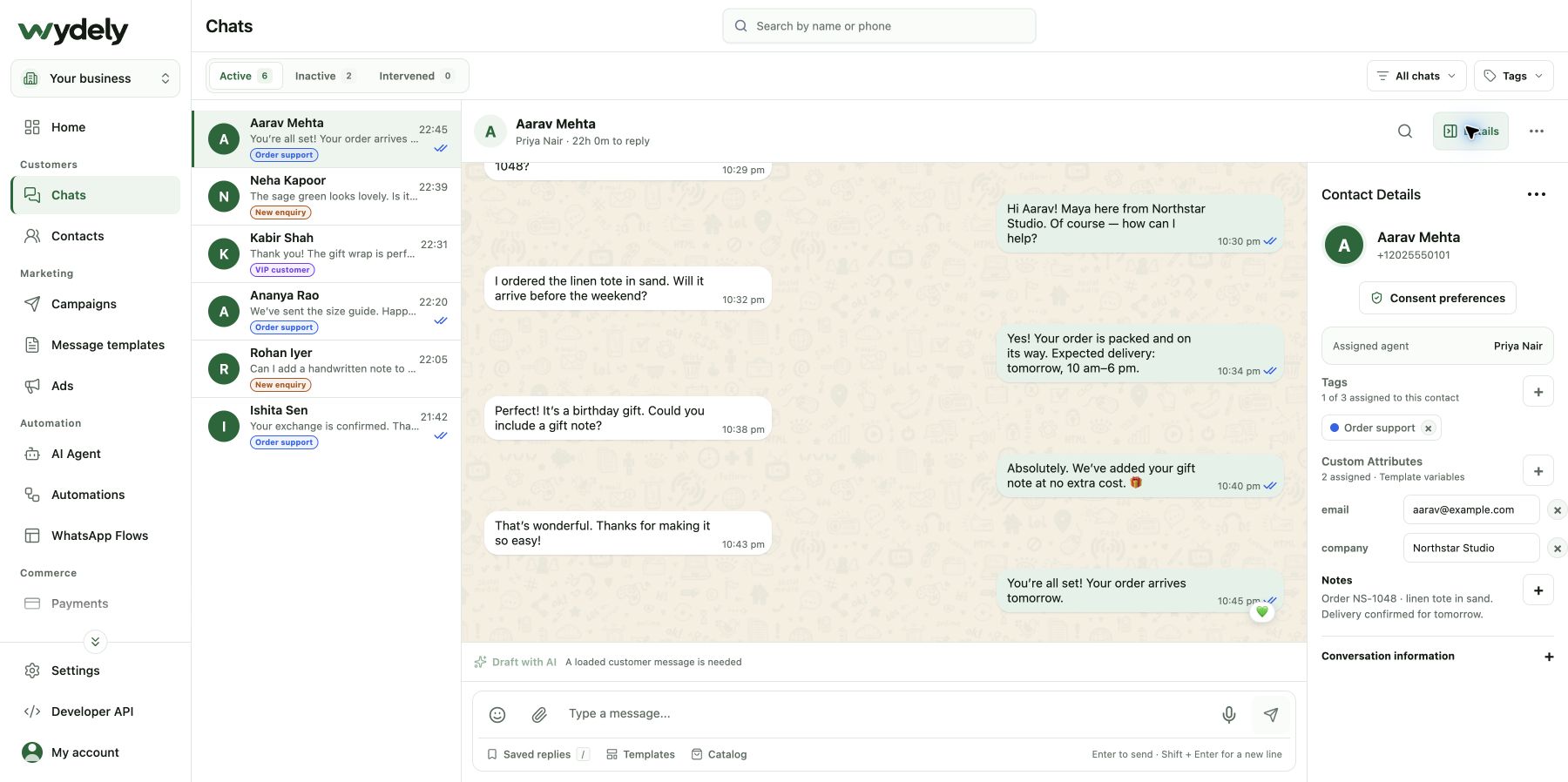
Connection status, setup steps and account activity.
Conversations, teammate assignment and customer context.
Contact records, tags, attributes and opt-in status.
Reusable messages, language, category and approval status.
Audience, message preview, delivery settings and outcomes.
Conversation branches or forms that collect structured answers.
Your navigation can vary with team permissions, connection state and enabled features. A missing or disabled action should be checked with the account owner.
Prepare the people and the message
Build a small test audience first. Keep customer context and consent clear before preparing outreach.
Use Add contact or Import CSV when available. Check names and country-code phone numbers, organize tags and attributes, and review opt-in records. A tag alone is not consent; exclude people who opted out.
ContactsProduct UI · sample data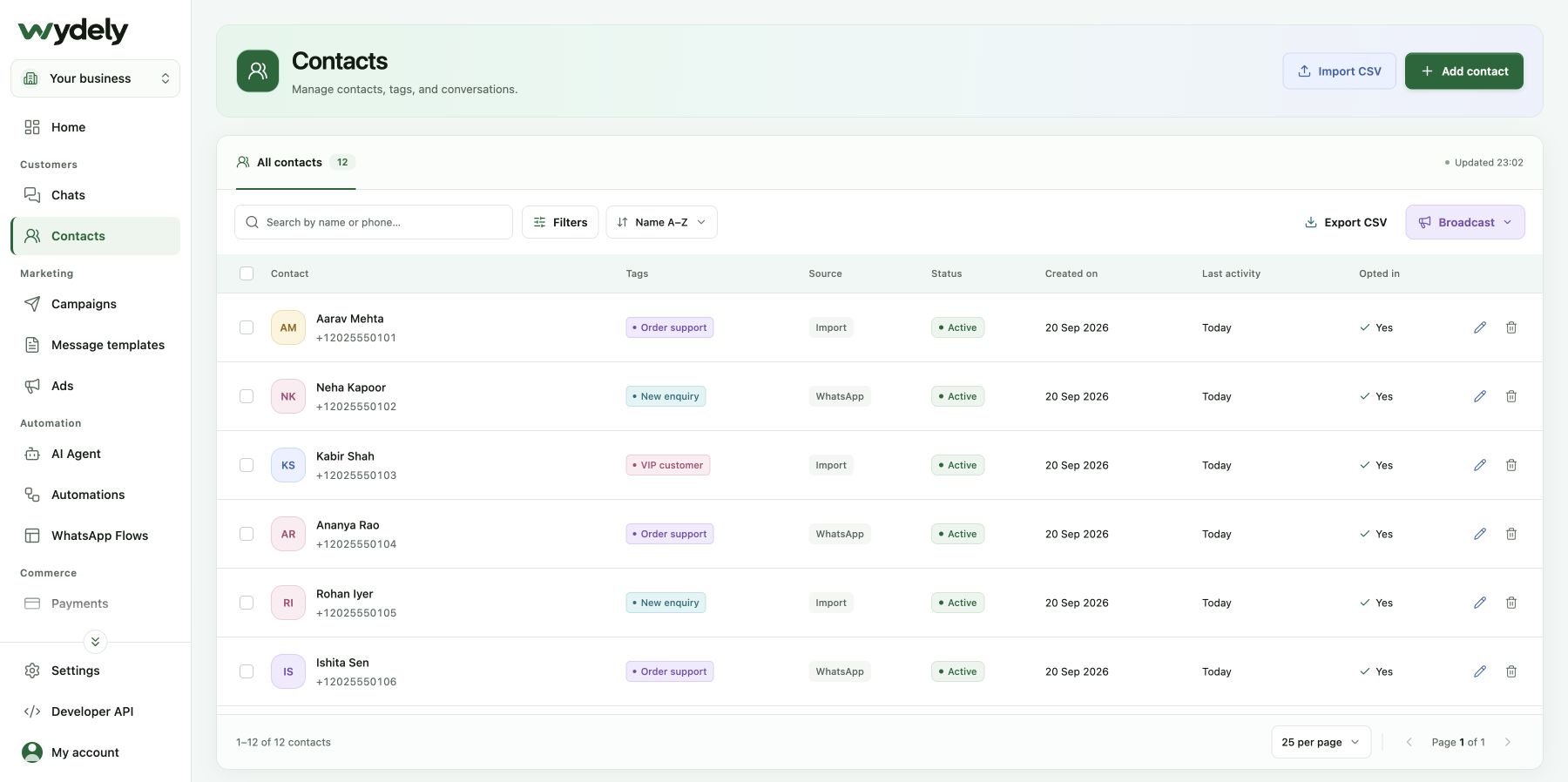
Choose the intended category and language, check the wording and sample values, then follow the template’s review status. For template-based outreach, use a template that is currently available for the intended use.
Message templatesProduct UI · sample data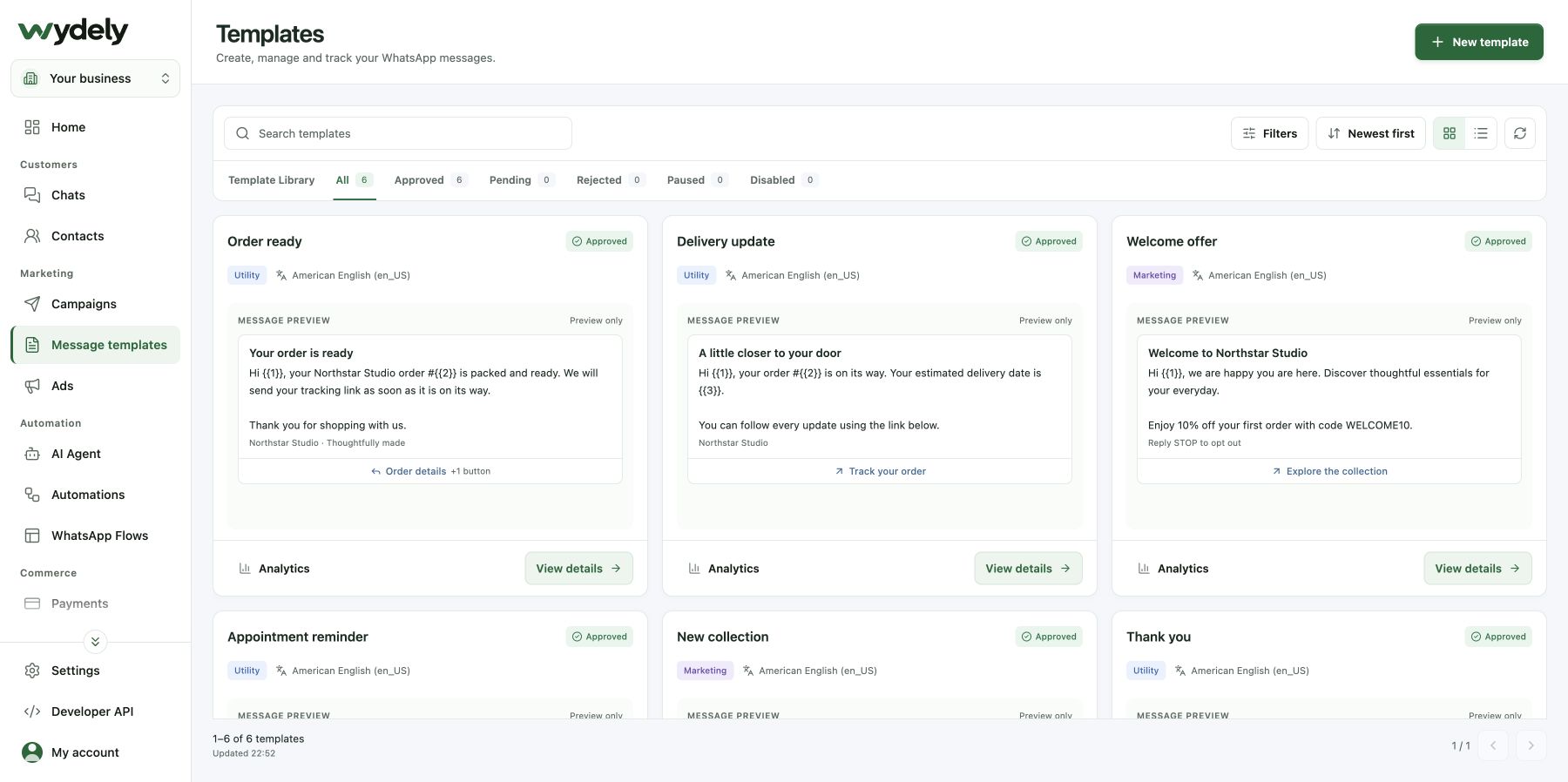
Choose your first workflow
Pick one route, define who owns the reply and decide what a successful test should show.
Open a test conversation, review its contact details and assign the right teammate. Add an internal note when useful, then check that the teammate can see the context and reply.
Chats · Team inboxProduct UI · sample dataCreate a campaign for your small test audience. Choose a current template, map each variable to the correct value or contact attribute and inspect the final message preview before reviewing delivery settings.
Campaigns · Campaign setupProduct UI · sample data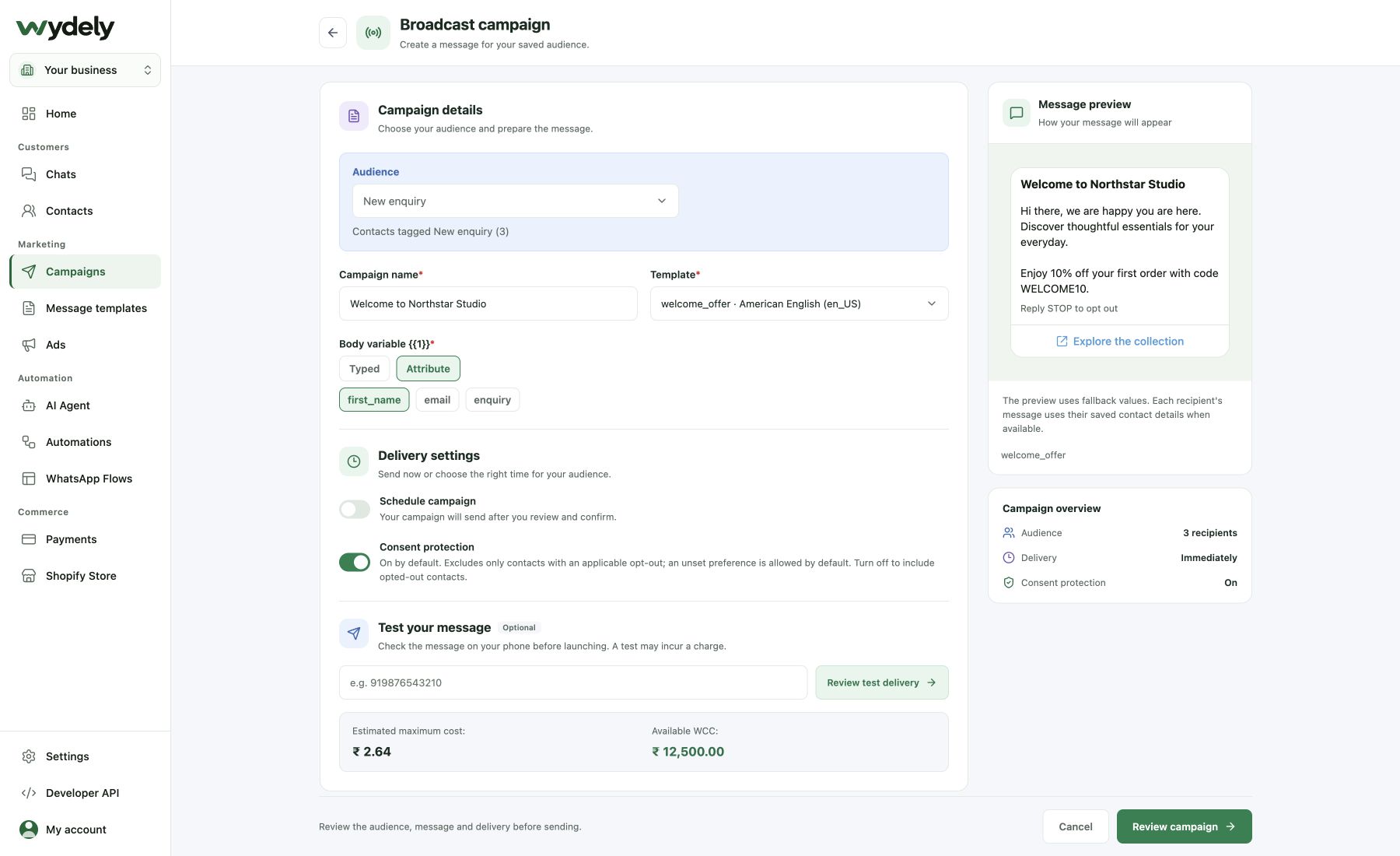
Start with one welcome message and a few useful reply choices. Connect the next steps, collect only the details you need and give the customer a path to a teammate.
Automations · Visual builderProduct UI · sample data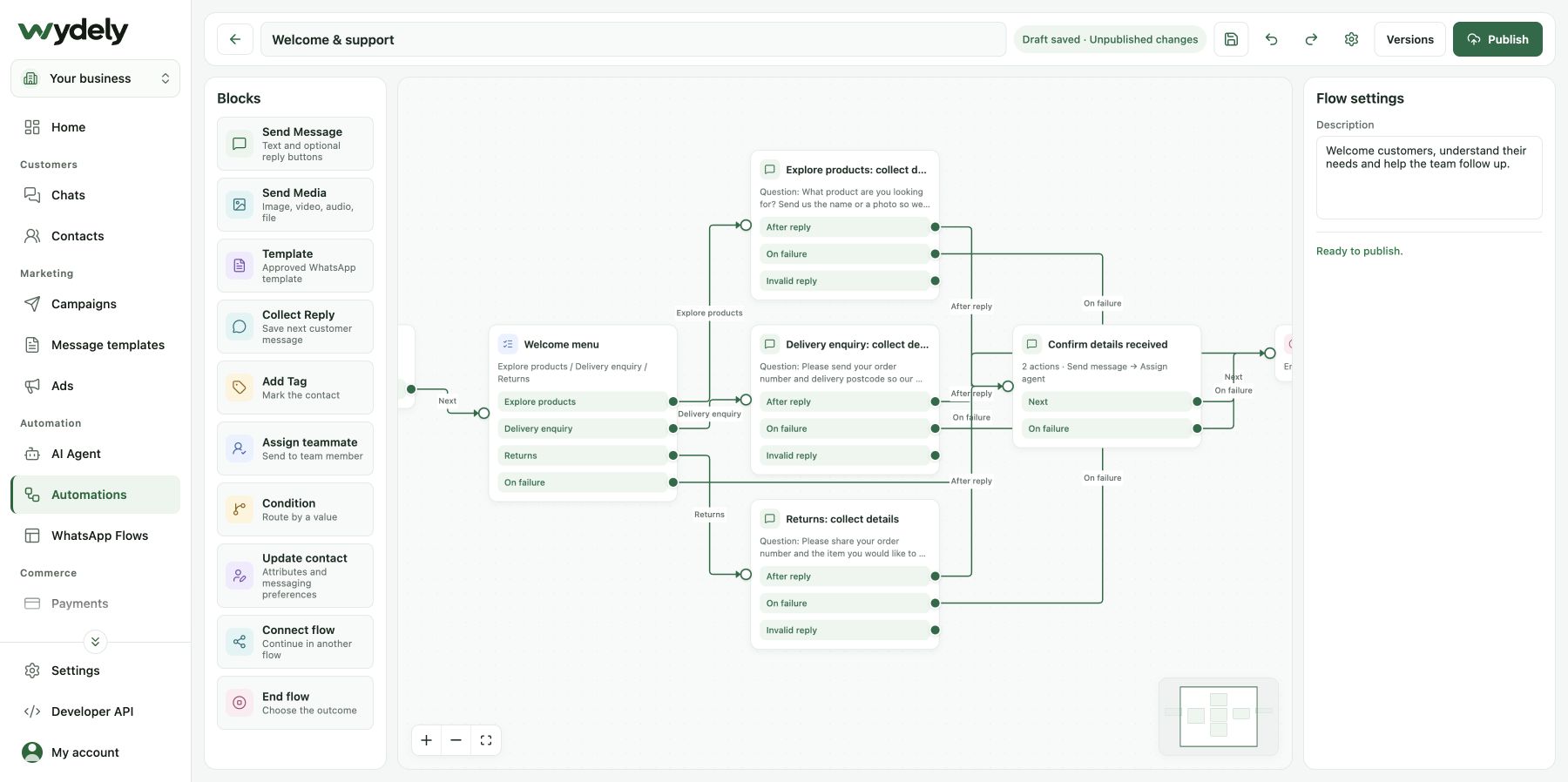
Choose a starter such as Appointment request. Edit its questions and required fields, check the customer view, then use Build → Test → Share. Publishing and sending are separate steps.
WhatsApp Flows · Appointment requestProduct UI · sample data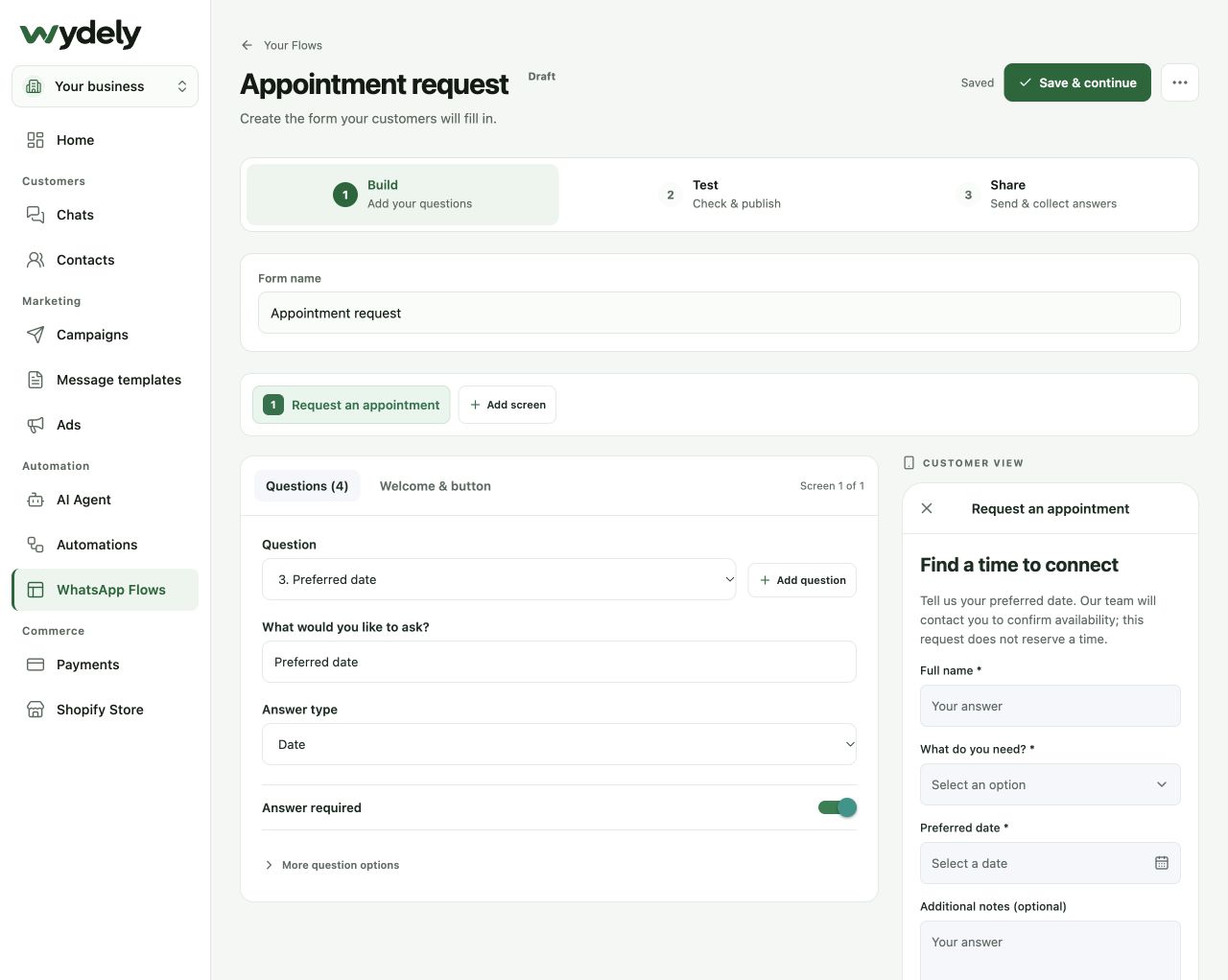
Test, review and continue
Use your own agreed test contacts before opening the workflow to the intended audience.
Confirm the project, number, recipient, consent, template status, variables and current sending conditions. Make sure a teammate is ready to reply.
Read the message on the customer side. Follow its buttons, reply branches or form, and check that the intended teammate receives the context or response.
Check the actual message and campaign statuses. Investigate errors before retrying. Review replies and opt-outs, then adjust the workflow before reaching a larger audience.
Product captures demonstrate the interface with fictional data. They do not demonstrate live delivery, approval, published automation results or account eligibility.
A guided next step
Tell us how the team works today, which number you plan to use and where you need help. We can review the actual product and the setup questions with you.
See how Wydely can support your team’s messaging workflow. Review account setup and requirements in a demo.

Your WhatsApp workspace
Every hello deserves a next step.
One workspace for the conversations your team handles every day.
Let’s explore it together
Tell us what your team handles today. We’ll explore the relevant tools and setup together.
Messaging depends on account eligibility, approved templates and applicable WhatsApp policies.