 Appointment request
Build a focused form
Arrange supported form fields and screens around the information your team needs.
From appointment requests to customer feedback and product preferences, collect useful answers inside WhatsApp. Start with a ready form, adjust the questions and inspect each customer screen as you build.
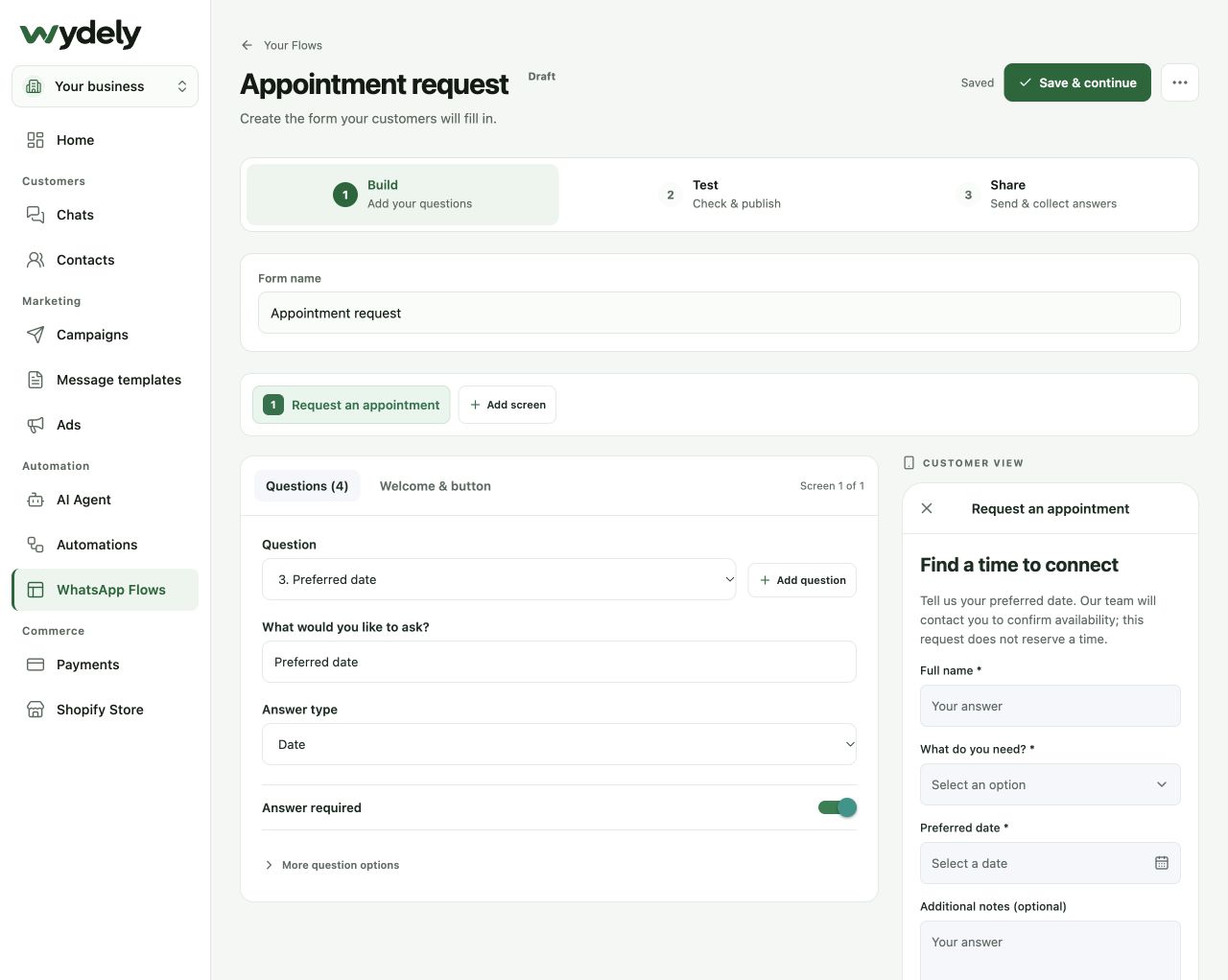
Use a form when your team needs a few clear details before following up.
Arrange supported form fields and screens around the information your team needs.
Preview the form and check the path before publishing. Confirm the data and permissions required for your use case.
Review submitted details in the response workspace and export available responses for follow-up.
Use the appointment example above for scheduling requests, or begin with an enquiry or feedback form. These are actual Wydely starter interfaces you can tailor to your business.
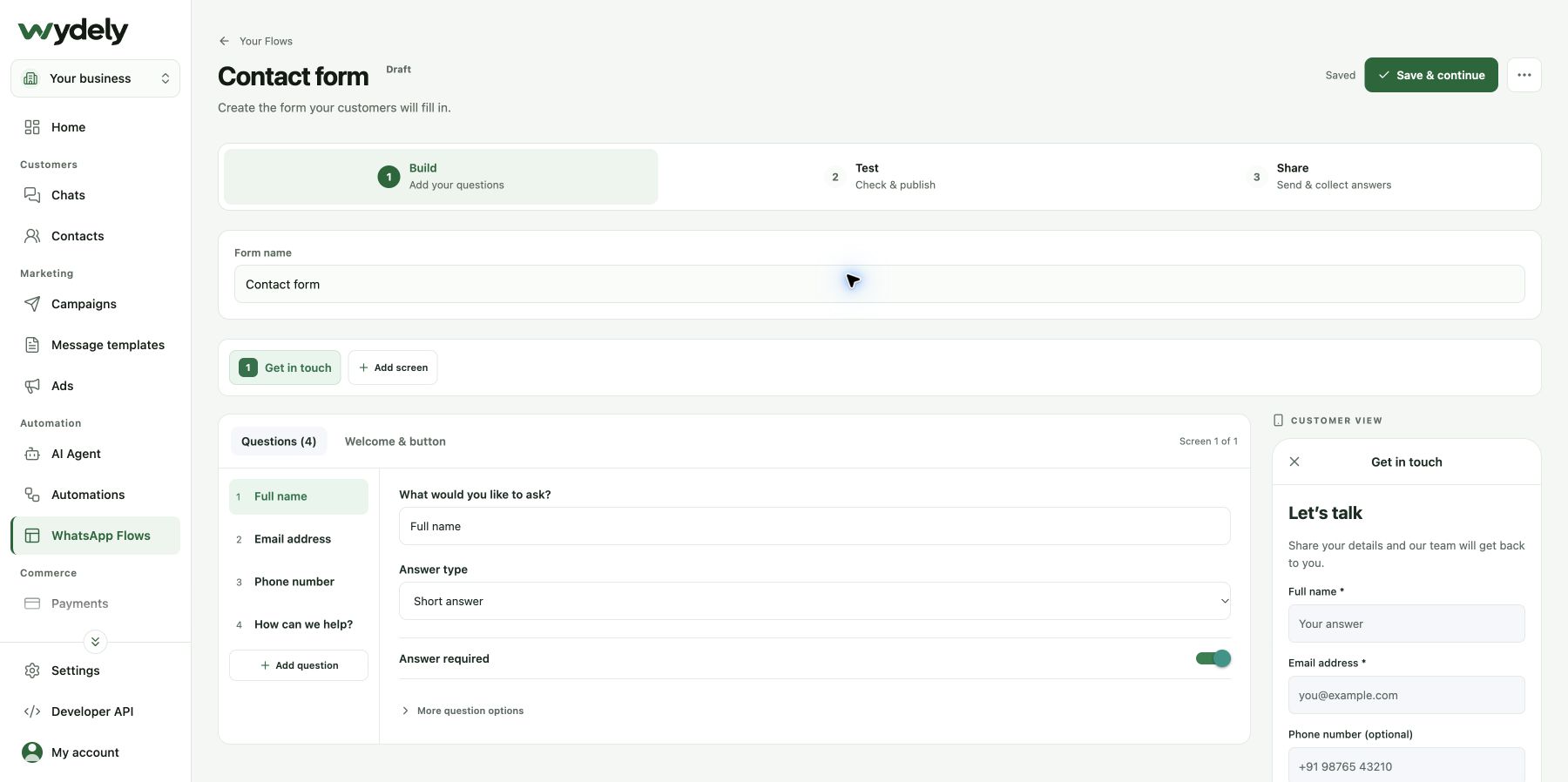
Collect the essentials before your team replies. Edit the name, email, phone and message questions to suit the enquiry.
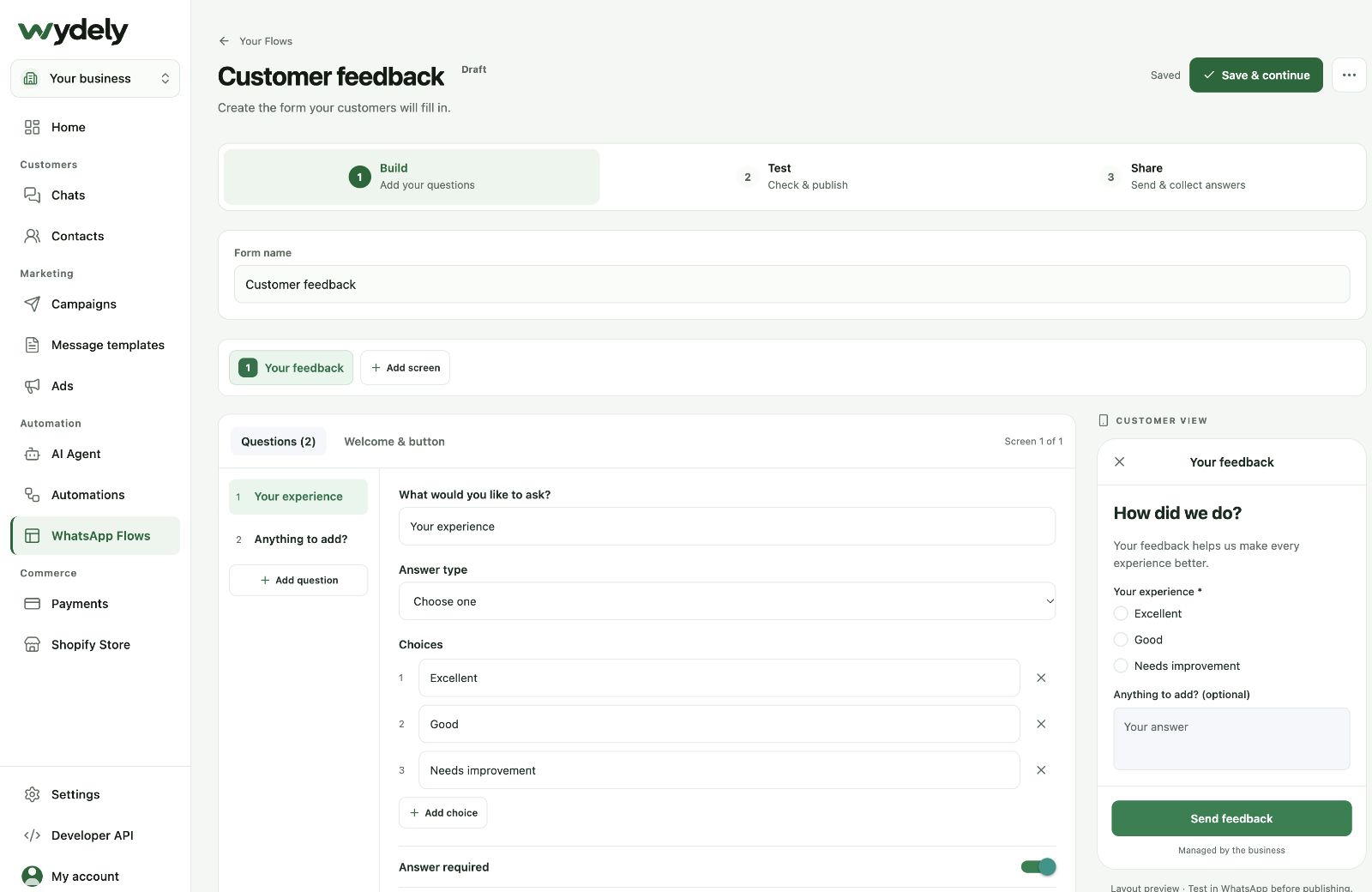
Give customers clear choices for their experience, with an optional comment when they want to explain more.
The Personalised offer request starter separates interests, preferences and contact details. Open each step to see its editor and customer preview.
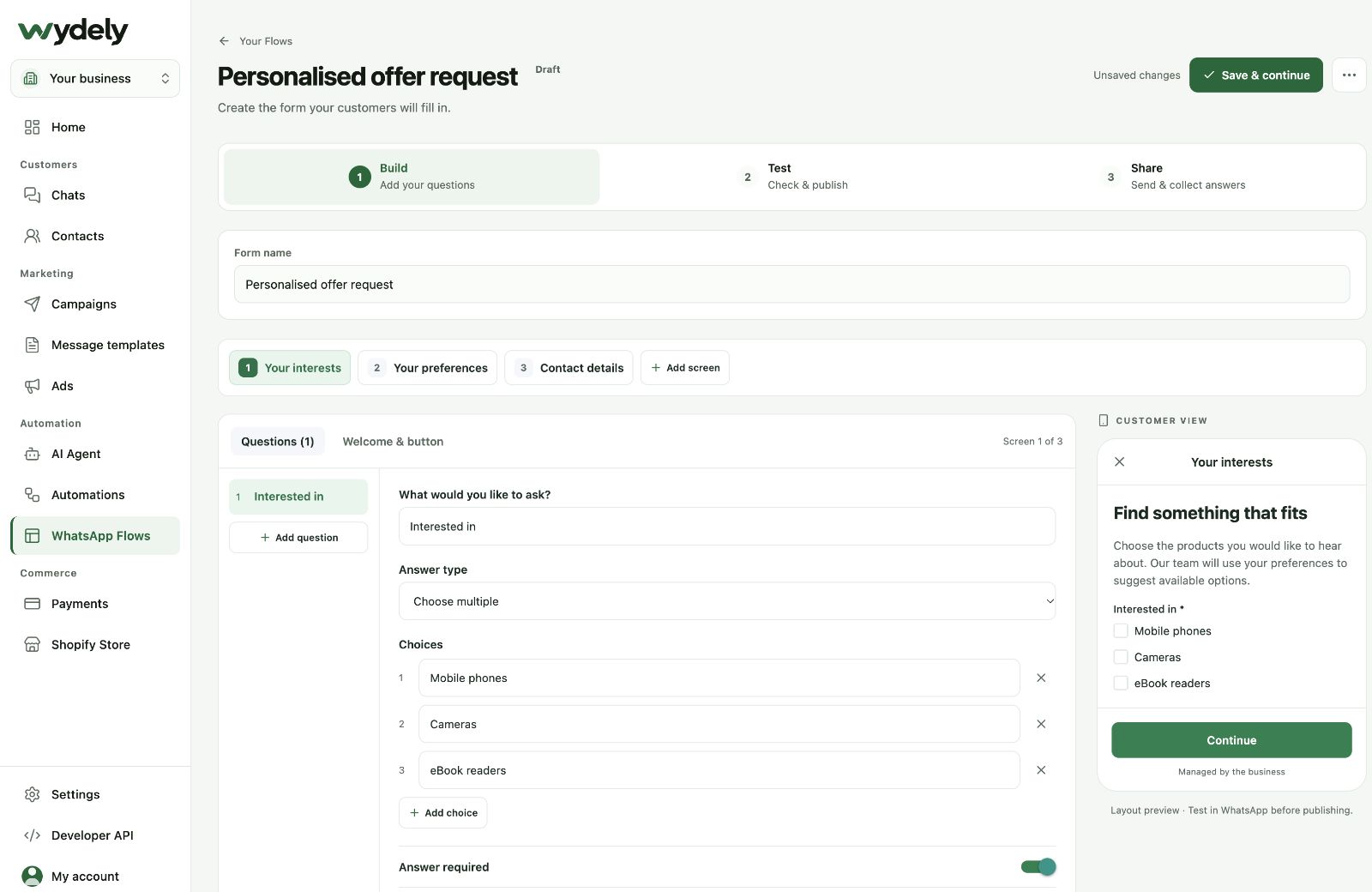
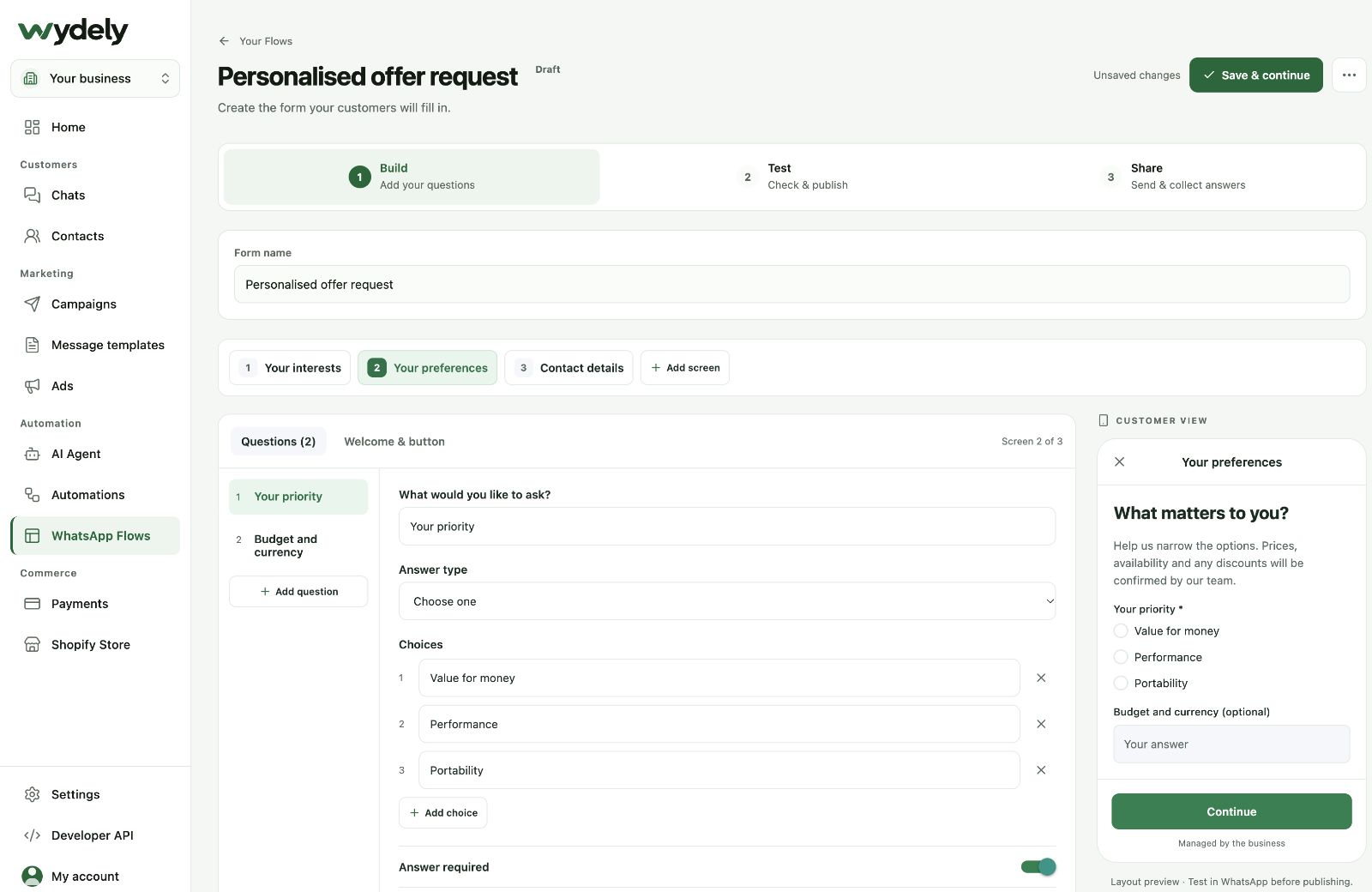
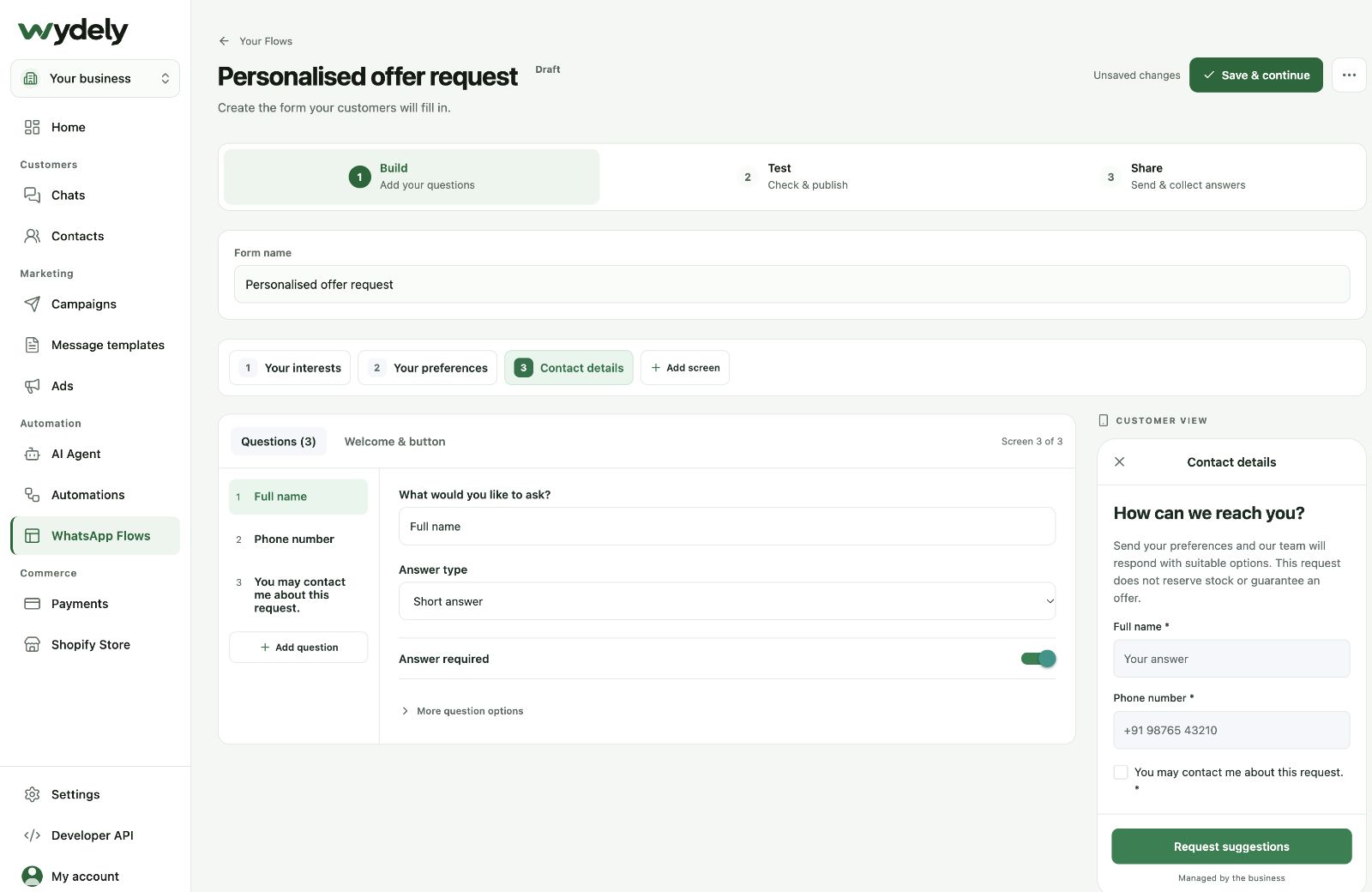
These captures show drafts and layout previews. Test the complete journey in WhatsApp before publishing or sharing.
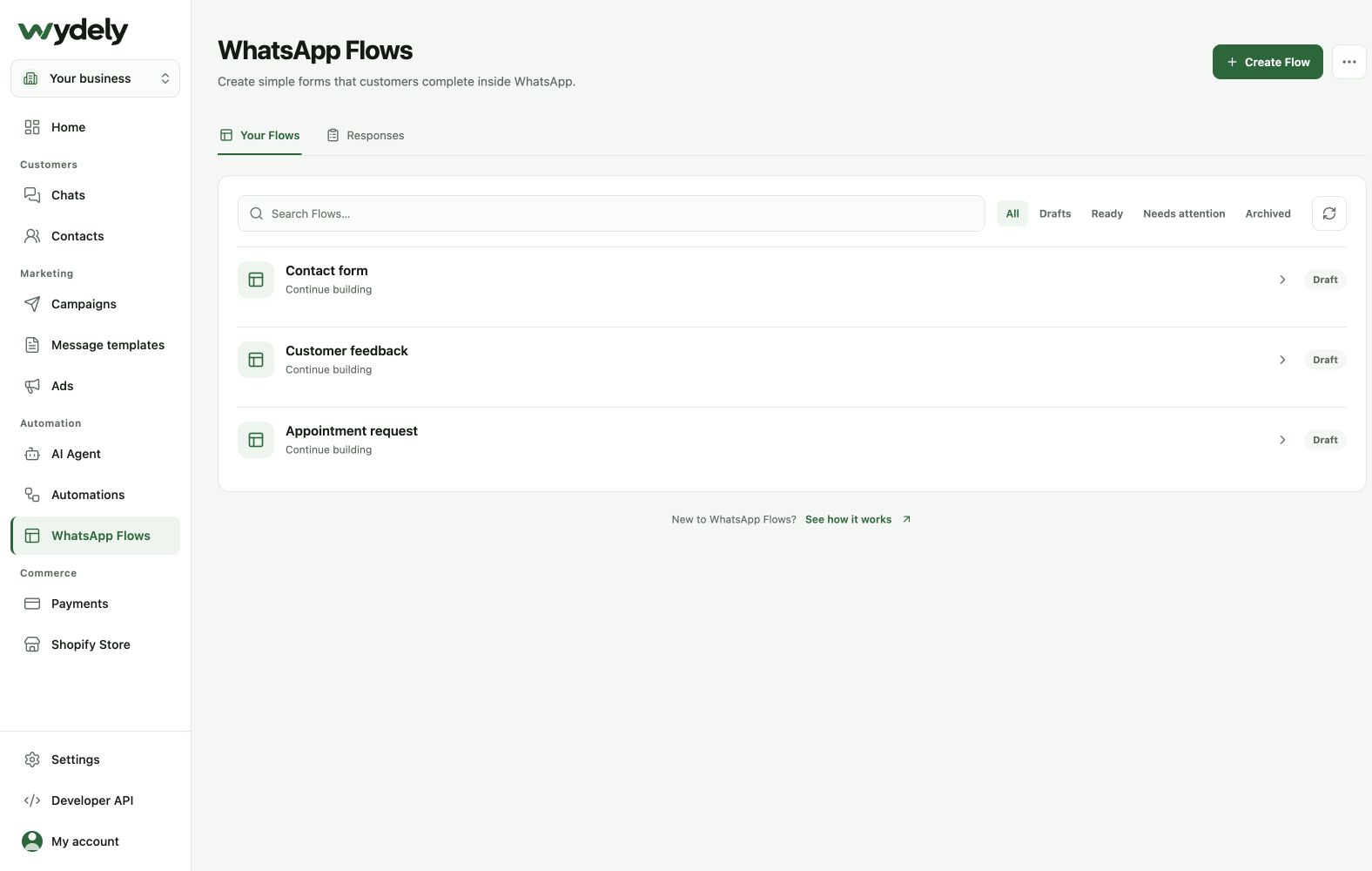
Use Your Flows to open a draft, filter by status or start another form. The Responses tab is the next place to review available submissions after customers complete a shared Flow.
An example of collecting the details a teammate needs to follow up.
Ask for the customer’s service interest and other relevant details. Keep the form short and clear.
Review the screens, publish the ready form and prepare an invitation template where required.
Send through a supported workflow, review the customer’s submitted response and continue with a teammate.
Bring an existing enquiry form or questionnaire. We can review the fields, invitation and account requirements with you.
Review your requirementsReview the details before choosing your workflow.
Explore plansWhatsApp Flows present a structured form with screens and fields. A chatbot guides a message-by-message conversation. Choose the format that makes the customer’s task easier.
The response workspace includes an export workflow for available submissions. Access and the supplied response data depend on your project permissions and form setup.
Business data needs a supported connection and the right access. Review any booking or order requirements before promising a live lookup in your form.
Explore a form, its invitation and the response workflow in a demo.
See how Wydely can support your team’s messaging workflow. Review account setup and requirements in a demo.

Your WhatsApp workspace
Every hello deserves a next step.
One workspace for the conversations your team handles every day.
Let’s explore it together
Tell us what your team handles today. We’ll explore the relevant tools and setup together.
Messaging depends on account eligibility, approved templates and applicable WhatsApp policies.